TripleTap for iPhone
AI help for
what’s on screen.
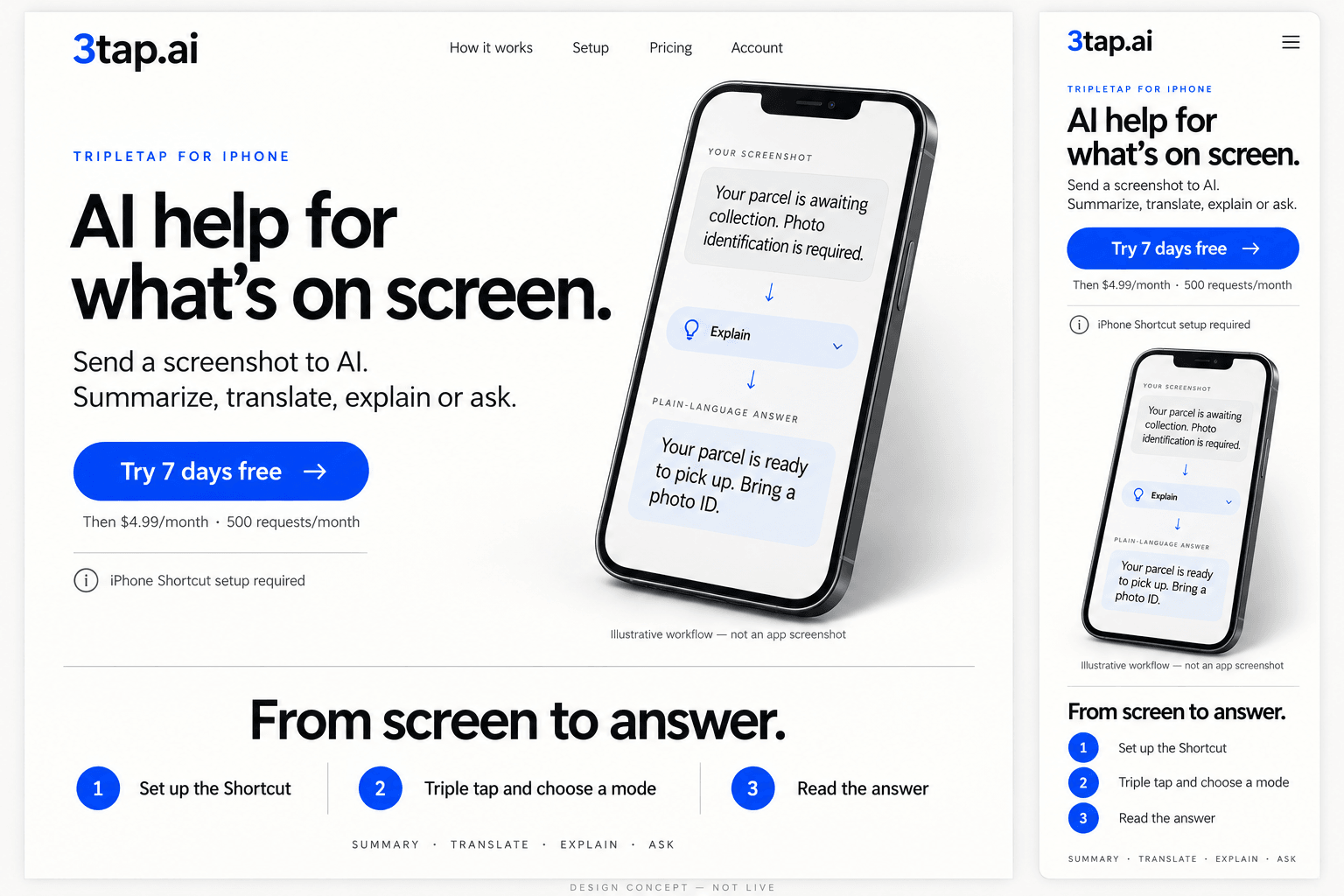
Send a screenshot to AI. Summarize, translate, explain, ask or draft a reply.
TripleTap is an iPhone Shortcut that sends a screenshot to AI. Set it up once, then triple tap to run it.
Then $4.99/month · 500 requests/month.
Cancel before the trial ends to avoid a charge.
From screen to answer.
- 1
Set up the Shortcut
Add 3tap Setup, paste in your emailed access key, and allow its screenshot and network prompts.
- 2
Triple tap and choose a mode
Assign Back Tap after a manual test. Then run it on a screen you are comfortable sharing.
- 3
Read the answer
The screenshot goes to AI. The Shortcut shows the returned text for you to review.
One screenshot. Five kinds of help.
Choose what you need.
Try a written example.
Nothing is uploaded here.
Your parcel is awaiting collection. Photo identification is required within seven days.
Your parcel is ready to pick up. Bring a photo ID and collect it within 7 days.
Written examples, not recorded AI results. Nothing is uploaded in this demo.
AI sees the screenshot you send, not the whole page. Check important details—answers can be wrong.
Made for your iPhone
A little context.
No surprises.
You need Apple Shortcuts, an internet connection and an active 3tap trial or subscription.
You decide what to share.
No continuous screen watching. Your chosen screenshot and instructions go to 3tap.ai and OpenAI for processing.
Privacy & retentionWhat exactly is TripleTap?
TripleTap (3tap.ai) is a paid AI service used through an Apple Shortcut. The Shortcut captures a screenshot when you run it, lets you choose a mode, sends the image and instructions to AI, and shows a text answer.
Which devices is this setup for?
This setup guide is for iPhone with Apple Shortcuts. Apple lists iPhone 8 or later with iOS 14 or later for Back Tap. That is Apple’s feature baseline, not a guarantee that every phone and Shortcut combination has been tested. Try the Shortcut manually on your phone first. This page does not offer an Android Back Tap setup or claim a native app is available in either store.
What do I need before it works?
You need an internet connection, a 3tap subscription or active trial, Apple Shortcuts, and your private 3tap API key. We email the key after checkout; account recovery is available if it is missing. Add 3tap Setup, paste in the key, allow the screenshot and network prompts, then assign it to Back Tap.
Can it read an entire article or control my phone?
It works from the screenshot you send, not the whole page or conversation. It does not scroll for you, press buttons, or continuously watch your screen. AI may misread text or give an incorrect answer, so check important information.
What happens to my screenshot?
The screenshot and instructions are sent to 3tap.ai and OpenAI to generate an answer. The 3tap application does not intentionally store the original screenshot in its database. Response text and request metadata may be stored; processors have their own retention terms. Only share screens you are comfortable sending.
How much does it cost?
The existing Pro offer includes a 7-day free trial, then $4.99 USD per month unless you cancel before the trial ends. It includes 500 successful AI requests per month. Requests pause at the limit and reset at the start of the next UTC month.
A shortcut to a little more clarity
Give your screen
a second opinion.
Summary. Translate. Explain. Ask. Respond.
One plan, all five modes.
$4.99 USD / month
After your 7-day free trial.
- 500 successful AI requests per month
- Cancel anytime
- No App Store download for this setup
Review the plan before checkout. iPhone setup required.
Already subscribed? Open your account