Draft a reply with Respond
Triple tap while viewing a message, then choose Respond. Review the suggested reply before copying and sending it yourself. If your existing Shortcut has no Respond or follow-up option, install the updated Shortcut below and connect your existing key.
Ask another question about a result
The updated Shortcut shows each answer with Ask a follow-up, Copy answer, and Done. Choose Ask a follow-up to keep asking about the same screen. It reuses your original screenshot during that run. After you finish, your conversation is available in saved results. Older installed copies need the updated installer below.
Open saved results and ask a follow-upPut 3tap one gesture away.
Add the Apple Shortcut, connect your private 3tap API key, then assign it to Triple Tap in iPhone Settings.
Open the installer on iPhone. If you already have the old 3tap Shortcut, add 3tap Follow-up Setup and switch Triple Tap to it. The old copy does not update automatically.
Back Tap requires an iPhone 8 or later with iOS 14 or later, according to Apple’s setup guide. Keep iOS and Shortcuts up to date, and try the Shortcut manually before assigning the gesture. If Back Tap is unavailable, run it directly from Shortcuts. Actual compatibility with your phone still needs that first test.
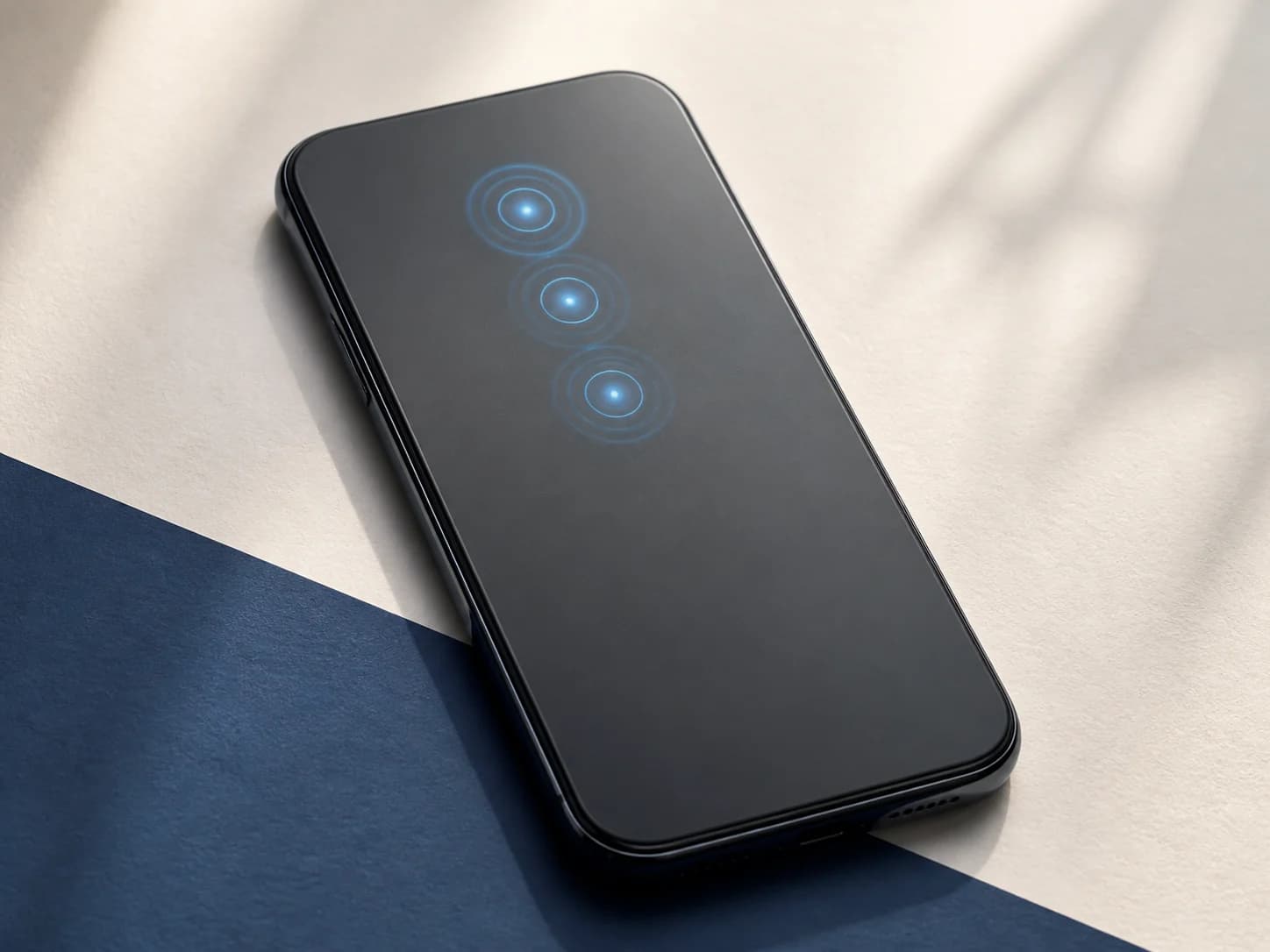
Back Tap
Triple tap to run 3tap
Five quick steps
From account to Triple Tap.
Take the setup in order. iOS will ask before the Shortcut can capture a screen or contact 3tap.ai.
- 01
Get your API key
After starting the trial, we email your private key to the address used at checkout. If it does not arrive, sign in to your account and create a new one.
- 02
Add 3tap Follow-up Setup
Download the signed Shortcut on your iPhone, open the downloaded file, review its actions, and tap Add Shortcut.
- 03
Paste your key
In the Shortcut’s Text action, replace only tap_PASTE_YOUR_PRIVATE_KEY_HERE with your key. Keep Bearer and its space.
- 04
Try it once
Open a screen you are comfortable sharing, run 3tap Follow-up Setup in Shortcuts, choose a mode, and allow its screenshot and 3tap.ai network prompts.
- 05
Assign Triple Tap
Go to Settings → Accessibility → Touch → Back Tap → Triple Tap and select 3tap Follow-up Setup. Then triple tap the back of your iPhone.
Developer Shortcut recipe
Inspect the Shortcut recipe.
Review the modes, fields, and production API endpoint used by 3tap. This JSON is documentation and cannot be imported directly into Apple Shortcuts.
Troubleshooting
If a tap does not land.
Use an iPhone with Shortcuts installed and keep your private 3tap API key ready.
Triple Tap does not run 3tap Follow-up Setup
Confirm that 3tap Follow-up Setup is selected under Triple Tap, remove a thick phone case temporarily, and tap the upper back of the phone three times at a steady pace.
The Shortcut says the API key is invalid
Keep Bearer followed by one space, then your private tap_ key. Replace only the placeholder, without extra spaces. If the key is lost, sign in to your account and rotate it. Then update every copy of your 3tap Shortcut with the new key.
I denied a permission or cancelled a run
A cancelled run does not return an AI result. Run 3tap Follow-up Setup manually in Shortcuts to try again. If a denied permission prevents it from running, open the Shortcut’s details and review its Privacy settings before retrying. Only allow screenshot and 3tap.ai network access when you are comfortable sharing that screen.
The request failed or no result appeared
Check your internet connection and run the Shortcut once more from Shortcuts. If it reports a request limit or inactive subscription, check your account before retrying. Do not start another trial to recover an existing account.